Troubleshooting General Rules
Here are some rules, unless instructed to do so by someone from Eye-in Media technical support
- Never power down the MediaPC
- Never power down the screens
- Never press any buttons on the screens
- Never use the remote control
- If we have set an auto on/off timer, please wait 10 minutes after the "time on" for the screens to calibrate. Images will shift from one sceen to another, an Eye-In Media background image will show, screens will flash on/off, the pc may even reboot 5 minutes after things look ok
If after 10 minutes, any of the screens are blank, check the following:
- Is there a circuit breaker that is in the off position that should be on. If so, turn it on
- Is the Power Bar near the Media PC turned on (Do they see a light). If not, turn it on
- Is the Media PC on (There will be a green light on the power button). If not, press the power button
If after 10 minutes, there is a sizing issue (i.e: One screen's image overlaps onto another screen, the images on one of the screens are smaller or larger than they should be):
- Call technical support (514-395-9327 x2 or 800-890-4213 x2)
- Please describe the issue, what time it happened, and inform the support person if there was a recent power outage
- If the store was installed a while ago, and the store only opened their doors recently, it will save us time if this is also mentioned
Problem: Screen is black.
Issue: The Screen or the Media PC might be turned off. This could happen after a power failure.
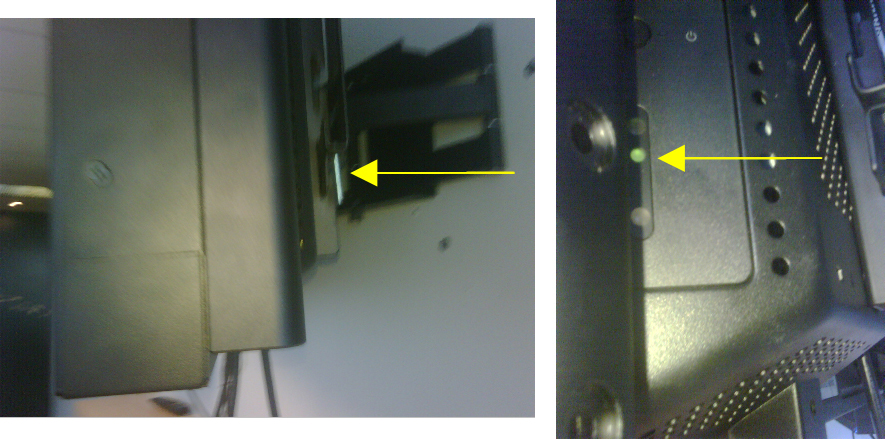
Solution: In the back of the screen, on the right side, check if there is a light near the power button.
-
FOR SAMSUNG PC BUILT IN (UXN-2) SCREEN: If the light is yellow or red = TV/PC is off. Need to push the power button (see image below)
-
FOR SAMSUNG UX-2 SCREEN: If the light is yellow or red = Screen is off. Need to push the power button of screen
-
FOR SAMSUNG UX-2 SCREEN: If the light is yellow and is blinking = PC is off or VGA cable is unpluged. Need to turn back on the PC or check if VGA cable is plugged properly
Problem: Cannot find power switch of screens.
Solution: The power switch is on bottom of the TV.
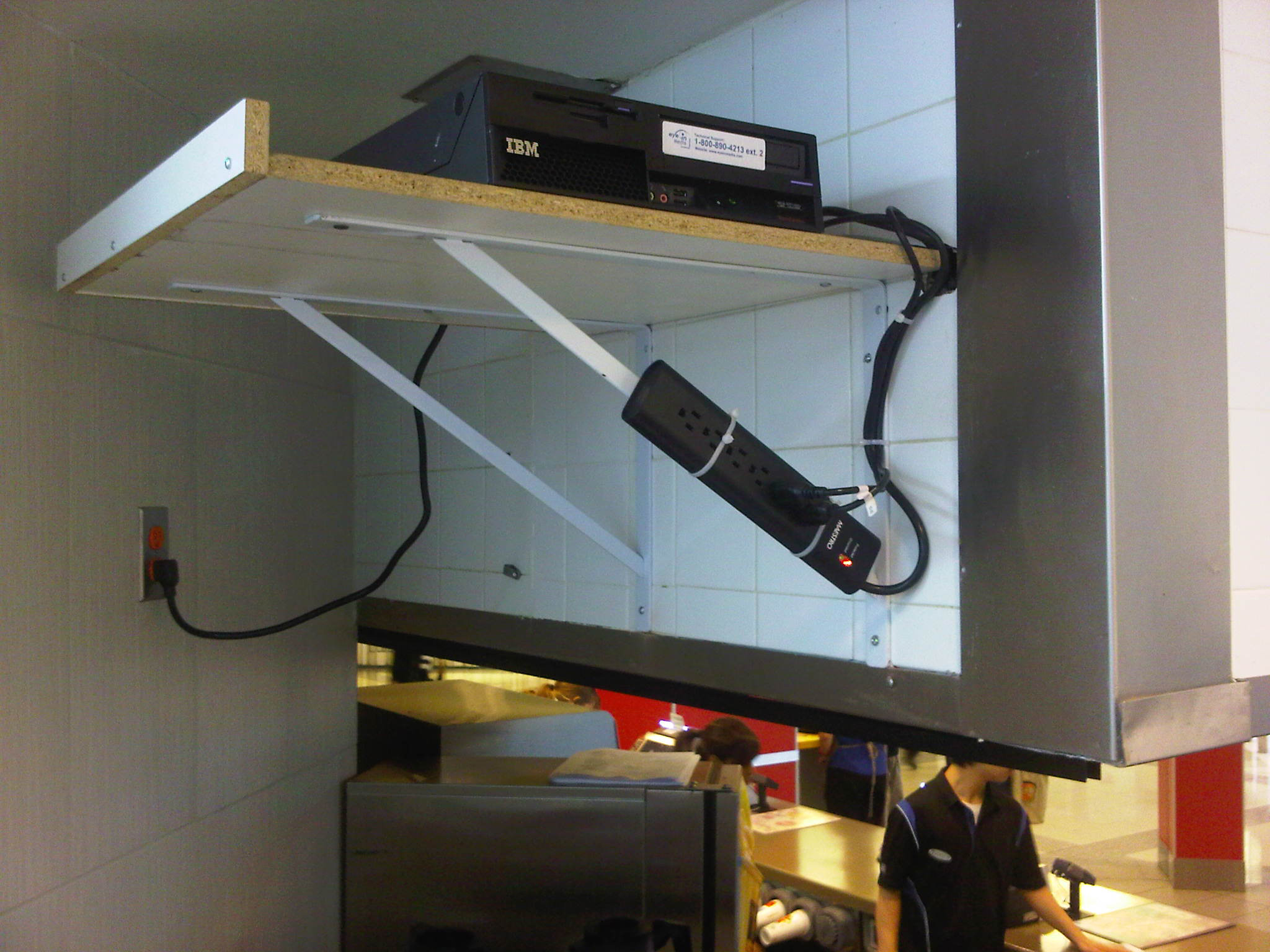
Problem: Cannot find power bar to reboot the PC
Solution: The power bar could be behind the TV or behind the wall of the TV, on a shelf.
Problem: Cannot access remotely to TP-Link
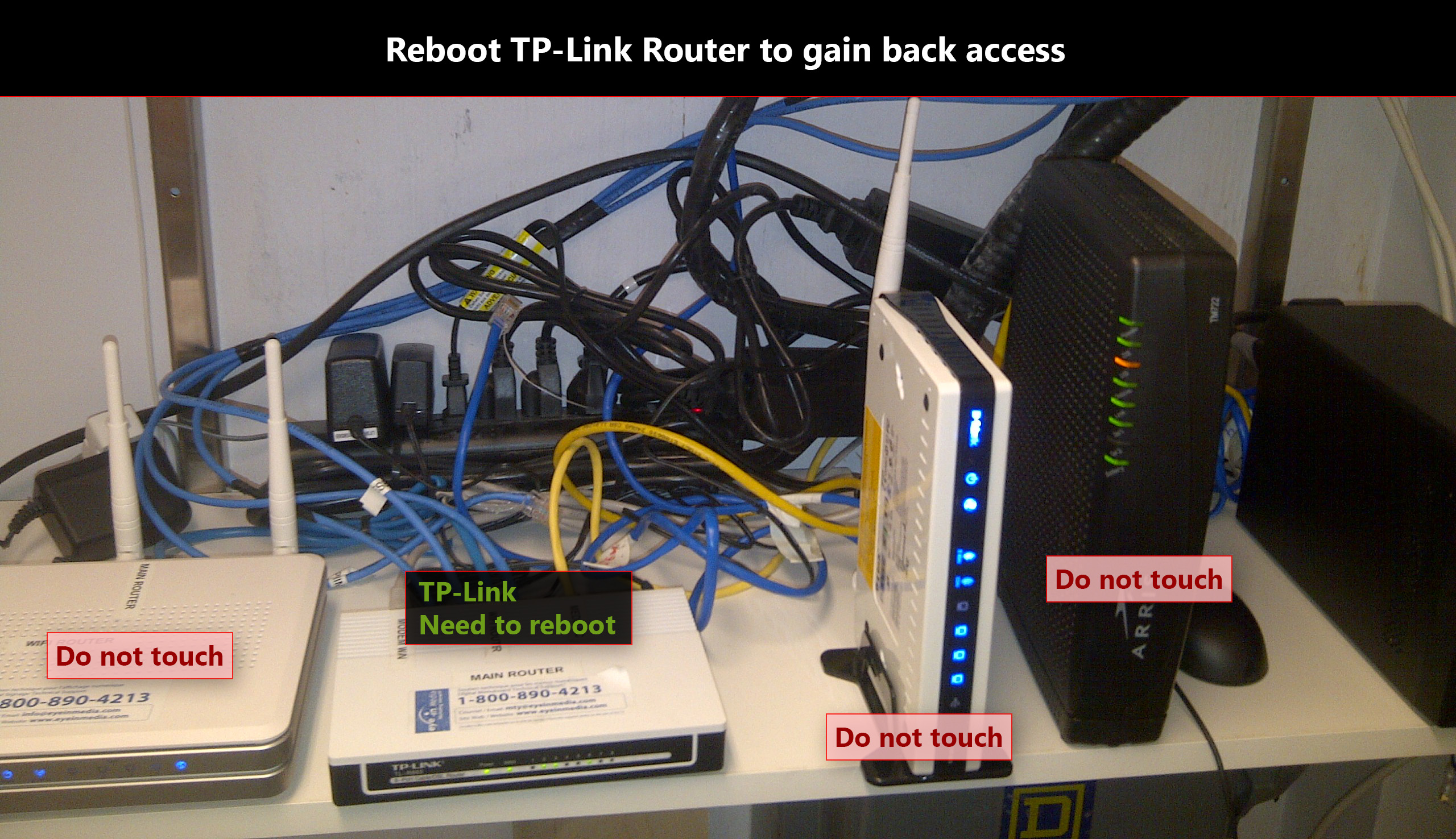
Solution: Reboot the TP-Link Rooter (see image). To do so, Unplug the power cable wait 2 minutes and plug back.